
When reporting an issue, it's often very helpful to have the log files. If asked to add them to your support request, you can navigate to the following depending on your operating system:
Windows
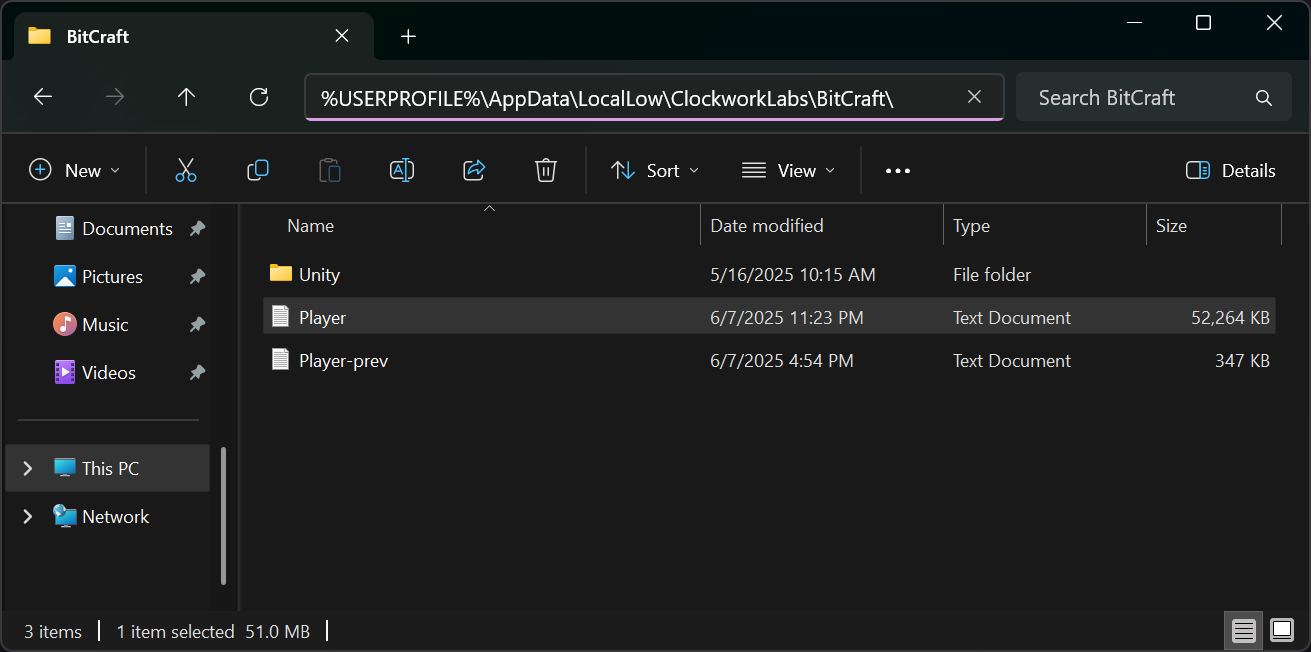
Open the File Explorer and copy & paste the following in the bar at the top:
%USERPROFILE%\AppData\LocalLow\ClockworkLabs\BitCraft\
Once you've navigated to this folder, you should see aPlayer.log file that you can attach to your report.
macOS
Open Finder, select "Go" in the bar at the top of your screen, and click "Go to Folder" in the menu. Copy & paste the following in the window that appears:
~/Library/Logs/ClockworkLabs/BitCraft/
Once you've navigated to this folder, you should see aPlayer.log file that you can attach to your report.
Linux
Please keep in mind that we do not officially support Linux, but sending us your logs can occasionally help us troubleshoot any issues you're having. On Linux, the player log files should typically be located at one of these two locations:
~/.config/unity3d/ClockworkLabs/BitCraft/Player.log
$HOME/.steam/steam/steamapps/compatdata/3454650/pfx/drive_c/users/steamuser/AppData/LocalLow/ClockworkLabs/BitCraft/Player.log
There are several different ways to install it on Linux, however, so it may be located in a different location.